Vector Art
Vector Art vs Raster Images: What's the Difference?
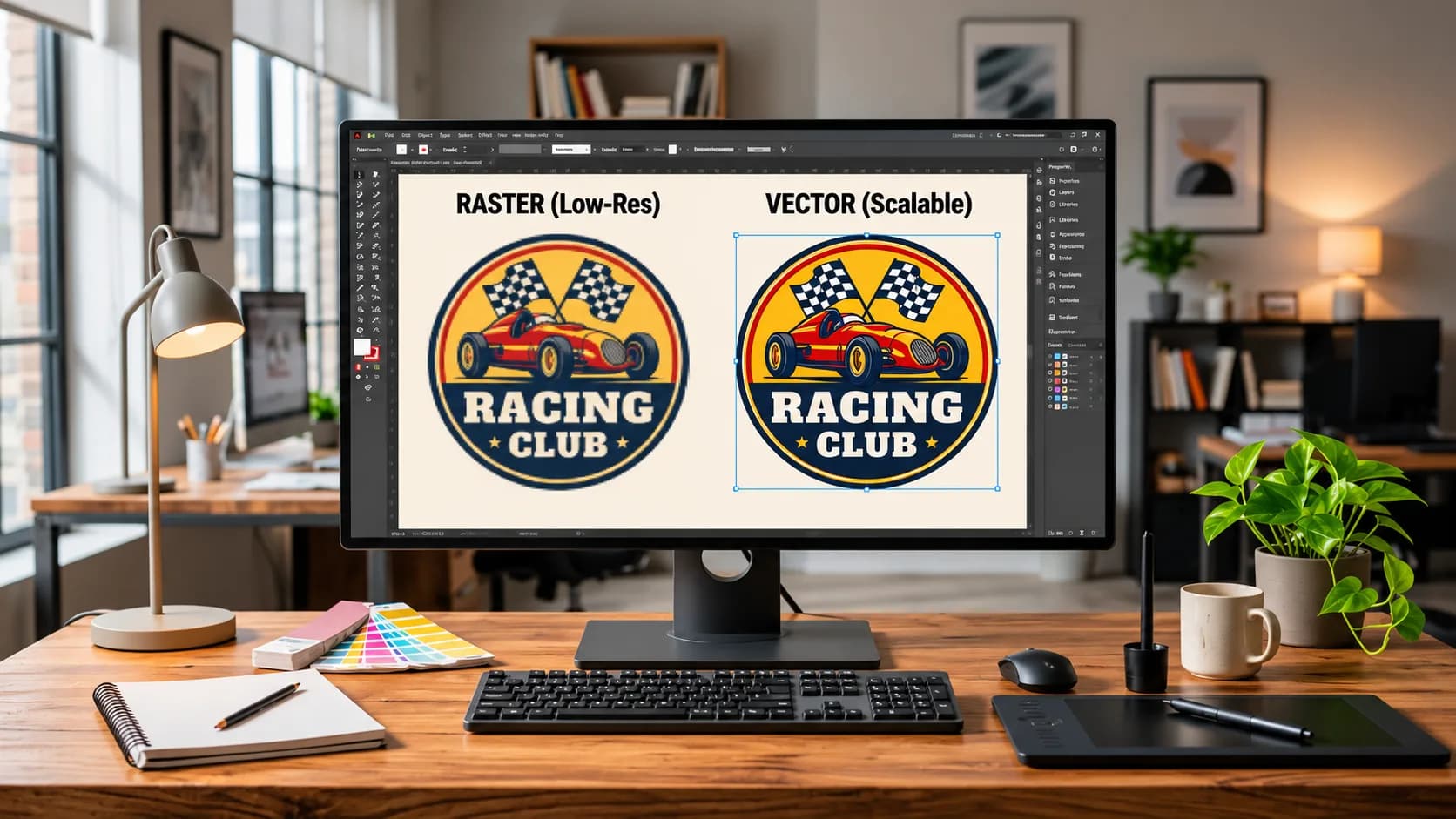
You have a company logo saved as a PNG. It looks sharp on your website and social media pages, but when a printing company enlarges it for a banner or a T-shirt design, the edges suddenly look blurry.
The printer asks you to send a vector file.
But what exactly is vector art, and why does it matter?
The main difference between vector and raster images is how they are constructed. Raster images are made from pixels, while vector graphics are created using mathematically defined paths, points, and shapes.
That difference affects how artwork can be resized, edited, printed, and prepared for professional production.
Vector artwork is especially useful for logos, branding, screen printing, signage, and other applications where clean, scalable shapes are important. Raster images are excellent for photographs, detailed textures, and many types of digital artwork.
Neither format is universally better. The right choice depends on the artwork and what you want to do with it.
In this guide, we'll compare vector and raster graphics, explain common file formats, and show when professional raster-to-vector conversion can help prepare your artwork for printing, embroidery digitizing, and other business applications.
What Is Vector Art?
Vector art is digital artwork constructed from paths, points, lines, curves, and shapes defined mathematically.
Instead of storing a fixed grid of colored pixels, vector graphics describe the geometry of the objects in a design.
For example, a circular company logo can be defined as a circle with a particular fill color and outline.
When you increase the size of that circle, the software recalculates its shape for the new display or output dimensions.
The edges remain geometrically smooth rather than becoming enlarged blocks of pixels.
How Vector Graphics Work
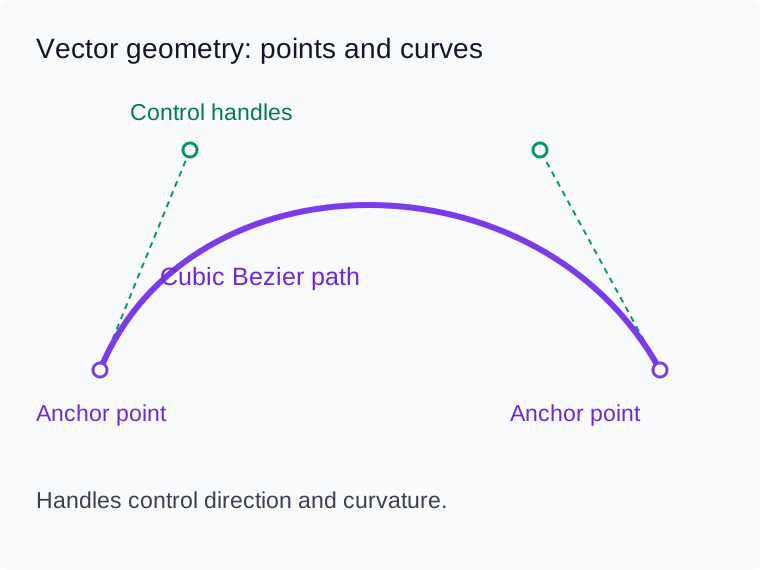
Vector graphics rely on several basic elements:
- Anchor points: Positions that help define shapes and paths.
- Paths: Lines and curves connecting points.
- Bézier curves: Curves controlled through mathematical handles.
- Fills: Colors or other appearances applied to enclosed shapes.
- Strokes: Outlines applied to paths.
- Editable objects: Individual design elements that can be selected and modified.
Imagine a two-color company logo containing bold lettering and a simple icon.
In a well-constructed vector file, the letters and icon can exist as separate editable objects. A designer can adjust their positions, resize the logo, or change the colors without manually repainting pixels.
This makes vector artwork particularly useful when the same design must appear on a business card, shirt, sign, packaging label, and large promotional banner.
Common Vector File Formats: AI, EPS, SVG, and PDF
Several file formats can store vector artwork.
| Format | Common Use | Important Consideration |
|---|---|---|
| AI | Adobe Illustrator projects | May also contain placed raster images |
| EPS | Printing and artwork exchange | Can contain vector and raster content |
| SVG | Web graphics, icons, and scalable illustrations | Can include embedded raster images |
| Print-ready artwork and document exchange | May contain vector objects, raster images, or both | |
| CDR | CorelDRAW artwork projects | Compatibility depends on software and version |
A filename extension alone does not guarantee that the artwork inside is genuinely vector-based.
For example, saving a blurry JPG image inside a PDF does not automatically rebuild that JPG into smooth vector paths.
The file is a PDF, but its logo may still be raster artwork.
Advantages of Vector Artwork
Vector files offer several useful benefits.
Scalability: Clean vector shapes can be enlarged or reduced without pixelation of their underlying geometry.
Editing flexibility: Individual shapes, colors, outlines, and objects can often be modified in compatible design software.
Clean edges: Vector paths are useful for logos, lettering, icons, and defined illustrations.
Production flexibility: Appropriate vector artwork can support screen printing, signage, cutting, engraving, packaging, and various branding workflows.
Reusable branding: A properly organized vector logo can be adapted to different physical sizes without redrawing the design every time.
Limitations of Vector Artwork
Vector art is not ideal for every kind of image.
Photographs, realistic textures, and illustrations with millions of subtle color variations are often easier to represent as raster graphics.
Complex vector artwork can also become difficult to edit if it contains an excessive number of paths or unnecessary anchor points.
Additionally, vector artwork does not automatically guarantee correct printing. A production file still needs appropriate colors, dimensions, line thicknesses, and other specifications.
What Is a Raster Image?
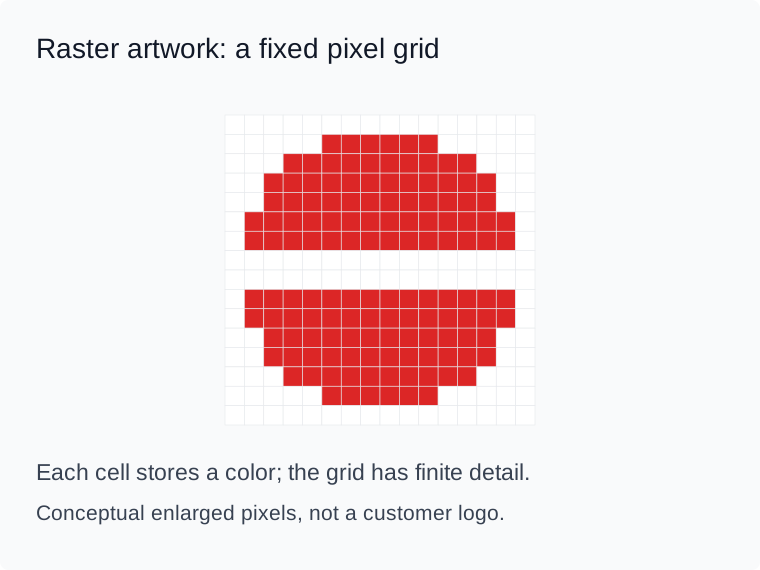
A raster image, also called a bitmap image, is constructed from a rectangular grid of pixels.
Each pixel stores color information.
When viewed together, those pixels create the photograph, logo, illustration, or graphic visible on your screen.
Digital cameras, smartphone photographs, website images, and many social media graphics are commonly raster-based.
How Raster Images Work
Imagine a logo saved as a 500 × 500-pixel PNG.
The file contains 250,000 pixel positions.
At a suitable display size, the logo may look sharp. But if you enlarge it significantly, the software has to spread or estimate those pixels across a larger area.
The result can appear blurry, jagged, or pixelated.
The issue is not that PNG is necessarily a bad format. The problem is that raster artwork contains a fixed amount of original pixel detail.
Common Raster File Formats: JPG, PNG, TIFF, PSD, and WebP
| Format | Common Use | Important Consideration |
|---|---|---|
| JPG/JPEG | Photographs and web images | Lossy compression can remove image detail |
| PNG | Logos, web graphics, transparent images | Still raster even with a transparent background |
| TIFF | High-quality imaging and print workflows | Often used for detailed raster artwork |
| PSD | Adobe Photoshop projects | Can contain raster layers as well as some vector-related elements |
| WebP | Optimized website images | Can provide efficient image compression |
| GIF | Simple web graphics and animations | Limited color capabilities |
A transparent PNG may be excellent for a website or social media post, but transparency alone does not make it vector artwork.
Understanding Pixels, Resolution, and PPI
Raster image quality depends partly on how many pixels are available for the intended output size.
PPI means pixels per inch. It describes pixel density when a raster image is displayed or prepared at a particular physical size.
For example, a 3,000-pixel-wide image placed at 10 inches wide provides:
3,000 ÷ 10 = 300 pixels per inch
The same file placed at 20 inches wide provides:
3,000 ÷ 20 = 150 pixels per inch
The original image contains the same number of pixels in both cases. Only the physical output size changes.
Many print workflows recommend approximately 300 PPI at final print dimensions for suitable raster artwork, but the actual requirement depends on the process, material, viewing distance, and printer specifications.
Changing a resolution label from 72 PPI to 300 PPI does not add original detail unless the image is resampled—and resampling cannot reliably reconstruct detail that was never present.
Advantages of Raster Images
Raster graphics are especially useful for:
- Photographs
- Detailed illustrations
- Textures and shading
- Complex gradients
- Photo-based apparel artwork
- Website photography
- Social media imagery
They can reproduce subtle color transitions and realistic details that would be inconvenient to construct using individual vector paths.
Limitations of Raster Images
Raster images have several practical limitations.
- Enlarging them beyond their available resolution can cause pixelation.
- Separating individual elements may be difficult when artwork is flattened.
- Low-resolution logos can require reconstruction before printing.
- Compression artifacts can reduce quality.
- Scaling the same file for different production applications may require new artwork preparation.
For logo-based printing and branding, these limitations are often why customers are asked to provide vector files.
Vector vs Raster: Key Differences
The following comparison summarizes how the two graphic types differ.
| Feature | Vector Graphics | Raster Graphics |
|---|---|---|
| Construction | Paths, points, curves, and shapes | Grid of colored pixels |
| Scalability | Geometry scales without pixelation | Limited by available pixel detail |
| Enlargement | Retains smooth mathematical edges | Can become blurry or pixelated |
| Common formats | AI, SVG, EPS, vector PDF | JPG, PNG, TIFF, WebP |
| Editing | Shapes and paths can be edited individually | Pixel-level editing or layered raster editing |
| Ideal applications | Logos, icons, lettering, line art | Photos, textures, detailed imagery |
| Printing | Excellent for clean spot-color shapes | Useful for photographic and halftone printing |
| File size | Depends on path complexity and contents | Depends on dimensions, detail, and compression |
| Resolution | Geometry is resolution-independent | Original image has fixed pixel dimensions |
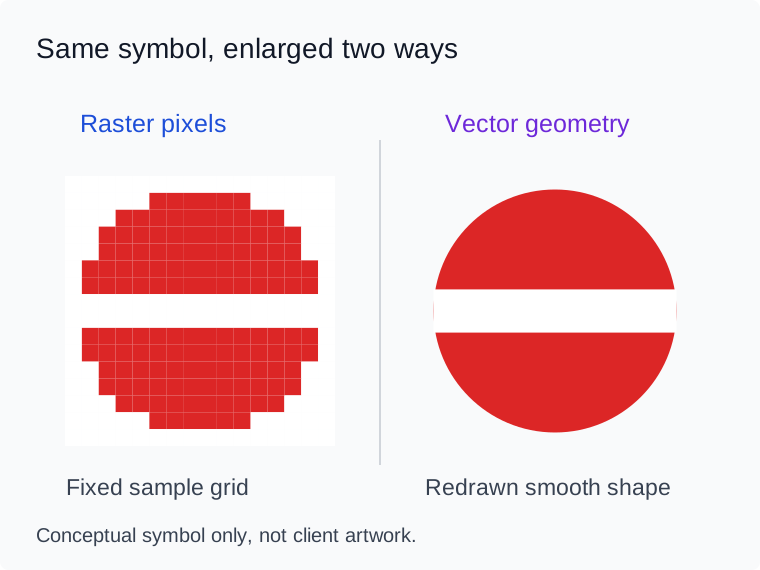
Example: Enlarging the Same Company Logo
Imagine a business has a simple logo consisting of a red symbol and black company name.
The business wants to use the same logo on three products:
- A small embroidered polo shirt.
- A 12-inch-wide T-shirt print.
- A large storefront sign.
A 400-pixel-wide raster logo might look acceptable on the shirt's design preview but become visibly pixelated when enlarged for the sign.
A properly reconstructed vector version allows the symbol and lettering to be resized while maintaining clean geometric edges.
However, the vector file must still be prepared appropriately for each production process.
The sign printer may need a particular color space or file format. The screen printer may need color separations. The embroidery company will need the artwork converted into machine-ready stitches.
The artwork format and the production instructions are not the same thing.
Why Do Vector Images Stay Sharp When Enlarged?
Vector graphics retain smooth geometry because their shapes are defined mathematically rather than stored as fixed pixels.
Understanding Mathematical Paths
Consider a straight line connecting two points.
A vector application stores the positions and properties of that line.
Whether the line is displayed at 100 pixels or 10,000 pixels wide, the software can redraw it at the requested size.
The same principle applies to curves, outlines, letters converted to paths, and other vector objects.
This is why vector files are so useful for scalable logos.
What Happens When You Enlarge a Raster Logo?
Raster images do not contain unlimited detail.
If a 300-pixel-wide logo is enlarged to 3,000 pixels, software must estimate the new pixels.
Image-scaling algorithms may smooth the appearance, but the original artwork does not suddenly acquire ten times more authentic detail.
The result may have softened edges, visible artifacts, or irregular lettering.
Why Export Resolution Still Matters
Vector geometry is resolution-independent, but the final output is not necessarily vector.
For example, you can create a logo as an SVG and export it as a 600 × 600-pixel PNG.
That PNG is now a raster file containing a fixed number of pixels.
It may look excellent at the intended size, but excessive enlargement can still cause pixelation.
Key takeaway: Preserve the editable vector master and export appropriately sized raster copies when needed.
Is PNG, JPG, or PDF a Vector File?
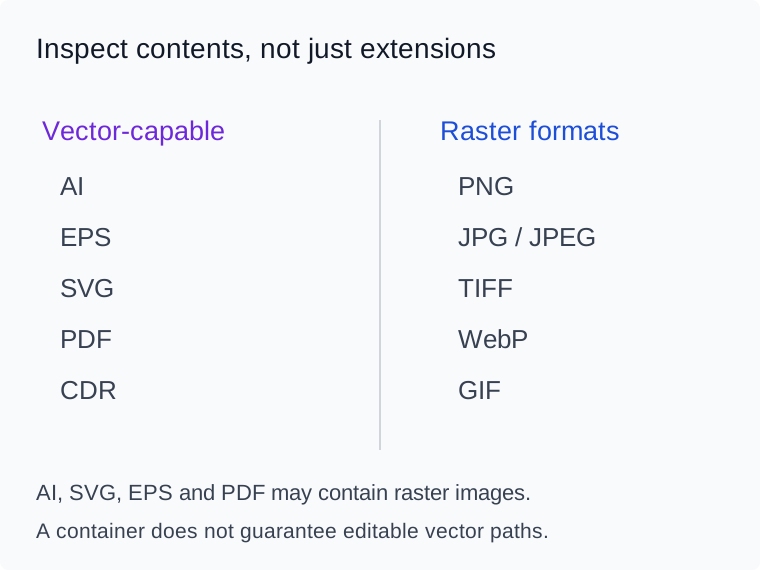
One of the most common sources of confusion is the assumption that certain filename extensions automatically indicate vector artwork.
The reality is more nuanced.
| File Type | Vector or Raster? |
|---|---|
| PNG | Raster |
| JPG/JPEG | Raster |
| WebP | Raster |
| TIFF | Primarily raster |
| SVG | Vector-capable, but can contain raster images |
| AI | Vector-capable, but can contain raster images |
| EPS | Can contain vector and raster data |
| Can contain vector, raster, or mixed content | |
| PSD | Typically a raster-oriented project, with some vector-capable objects |
Is a PDF Always Vector?
No.
A PDF is a document format, not a guarantee of vector artwork.
A PDF can contain editable paths, embedded fonts, photographs, rasterized logos, or combinations of these elements.
If you place a low-resolution PNG into a PDF and save it, that PNG does not automatically become a clean vector image.
Can an AI File Contain Raster Artwork?
Yes.
Adobe Illustrator can contain placed or embedded raster images.
An Illustrator document may be saved with an .ai extension while the main logo remains a pixel-based image.
To confirm that the artwork is truly vector, inspect whether its essential shapes are constructed from usable paths rather than merely embedded pixels.
Can You Make a JPG Vector by Renaming It?
No.
Changing logo.jpg to logo.svg or logo.ai does not transform the internal artwork.
Real raster-to-vector conversion requires tracing or reconstructing the image into vector geometry.
Vector vs Raster for Screen Printing
Artwork preparation plays a major role in successful screen printing.
Screen printing typically uses separate stencils or screens to apply different ink components to a garment.
For logos with flat colors, vector artwork is often especially convenient.
Why Vector Artwork Is Useful for Logo Printing
Vector files allow designers and print shops to work with clean, defined shapes.
They can help with:
- Preparing consistent outlines
- Editing lettering
- Assigning spot colors
- Adjusting print dimensions
- Creating separations
- Maintaining sharp boundaries between design elements
For example, a two-color company logo can often be prepared using separate shapes or layers corresponding to the intended ink colors.
This makes the artwork easier to inspect and prepare for the screen-printing process.
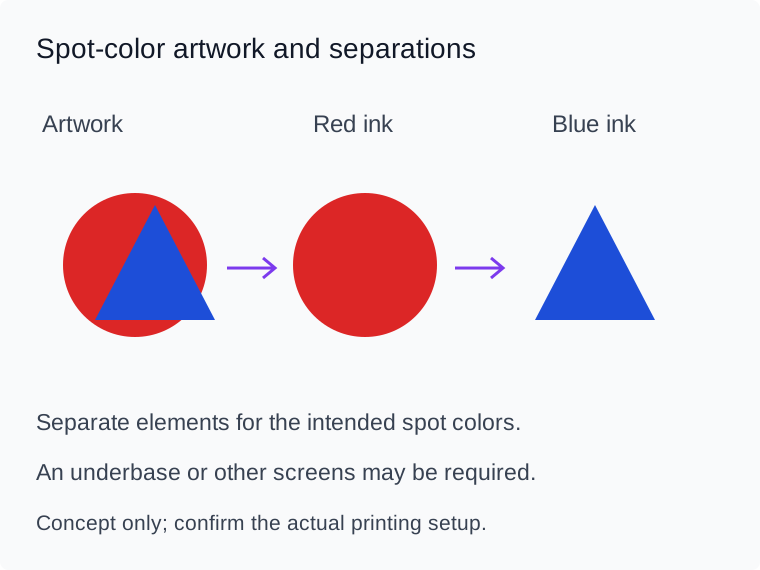
Color Separations and Spot-Color Designs
A screen-printing job may require individual separations for each ink color.
For example, a design printed using solid red and white inks generally requires separate red and white printing elements.
Appropriate vector artwork can make those elements easier to isolate.
However, the number of screens depends on the actual printing method, underbase requirements, and production setup.
A design with two visible colors is not automatically limited to exactly two screens in every situation.
When High-Resolution Raster Artwork Is Appropriate
Vector is not mandatory for every screen-printing job.
Photographic artwork, intricate tonal images, and detailed illustrations may be prepared using raster artwork and halftone or process-color separations.
A properly prepared, high-resolution raster file can be suitable for these applications.
The print shop should specify its preferred dimensions, resolution, color setup, and separation requirements.
Preparing Artwork for Screen-Printing Production
Before sending a logo to a screen printer:
- Confirm the finished print size.
- Check whether the shop prefers vector artwork.
- Identify the required ink colors.
- Ensure lettering is properly prepared.
- Remove unwanted backgrounds.
- Confirm minimum printable line thicknesses.
- Supply linked or embedded artwork as requested.
- Verify the file before final production.
A clean vector file is often an excellent starting point, but production-ready artwork also requires correct separation and printing specifications.
Vector vs Raster for Embroidery Digitizing
Vector artwork is also useful in embroidery preparation, but embroidery has different technical requirements from printing.
A common misconception is that an embroidery machine can use a vector logo directly to produce professional stitches.
In conventional workflows, the artwork must still be digitized into machine embroidery instructions.
Can You Digitize a PNG or JPG Logo?
Yes.
A clear PNG or JPG can be used as reference artwork for embroidery digitizing.
A digitizer studies the design and creates stitch objects, machine instructions, and a suitable embroidery sequence.
The original image quality affects how accurately shapes and lettering can be interpreted.
If the image is blurry or missing details, the provider may request better artwork or recommend cleanup.
Is Vector Artwork Required for Embroidery?
Not necessarily.
Professional digitizing can be performed using suitable raster reference artwork.
However, vector files can make preparation easier because the outlines, proportions, and individual graphic elements may be clearer or more accessible.
A proper vector logo may reduce ambiguity when interpreting the artwork.
How Vector Files Help With Artwork Preparation
Suppose a business wants a three-color badge embroidered on uniforms.
A clean vector version may allow the digitizer to:
- Identify individual shapes
- Understand intended boundaries
- Reference accurate lettering
- Separate design elements
- Assess proportions
- Simplify fine details for stitching
Even with a vector source, the digitizer must decide how the artwork should be stitched.
Why Vector Art Is Not the Same as an Embroidery File
A vector logo contains graphic geometry.
A machine embroidery file contains stitch-related instructions.
Formats such as DST, PES, and EXP serve different embroidery machine workflows. They are not replacements for an AI or SVG artwork master.
If you want to understand the conversion process, read What Is Embroidery Digitizing? A Complete Beginner's Guide.
For machine compatibility, see DST vs PES vs EXP: Understanding Embroidery File Formats.
What Is Raster-to-Vector Conversion?
Raster-to-vector conversion is the process of rebuilding an image as vector paths and shapes.
It is commonly used when a customer has only a JPG or PNG logo but needs scalable, editable artwork.
For example, a business may have an old company logo saved as a small image extracted from a website.
The original design file may no longer exist.
A vector artist can reconstruct the logo's lettering, outlines, and graphic elements, producing a more useful artwork master.
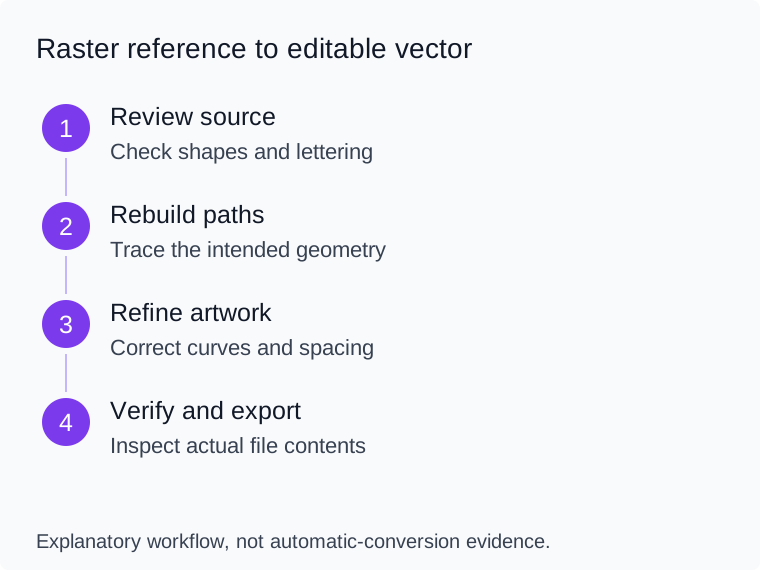
How Vector Conversion Works
The conversion process begins by analyzing the original image.
A designer identifies the main objects, proportions, curves, colors, and text.
These elements are then reconstructed using vector paths.
The result can be saved in a suitable editable format and exported into additional production formats.
The quality of the final vector artwork depends on how accurately the original shapes are recreated and how cleanly the paths are constructed.
Manual Vector Tracing vs. Automatic Image Tracing
There are two common approaches.
Manual tracing involves intentionally rebuilding the artwork using drawing tools, paths, and curves.
Automatic tracing uses software to detect pixel boundaries and generate vector shapes.
Both approaches can be useful, but they have different strengths.
| Feature | Manual Tracing | Automatic Tracing |
|---|---|---|
| Control over paths | High | Depends on generated output |
| Accuracy for complex lettering | Can be carefully reconstructed | Often needs correction |
| Initial speed | Usually slower | Often faster |
| Cleanup requirements | Depends on artwork and skill | Can be substantial |
| Best use | Logos needing precise reconstruction | Clean, high-contrast source artwork |
| Common limitation | More hands-on work | Excess points and imperfect curves |
Automatic tracing can provide a starting point, but it should not be assumed to produce a final professional file without inspection.
When Should You Redraw a Logo?
A full or partial redraw may be useful when the original artwork has:
- Blurry edges
- Heavy compression artifacts
- Distorted lettering
- Missing outlines
- Uneven proportions
- An unwanted background
- Poorly defined shapes
- Incorrect or inconsistent curves
Sometimes rebuilding a simple logo manually produces cleaner results than tracing every pixel of a damaged image.
Can Every Image Be Converted to Vector?
Many images can be represented using vector shapes, but that does not mean every conversion is practical or visually appropriate.
A simple two-color logo is often a good candidate for clean vector reconstruction.
A detailed photograph containing fine textures, lighting effects, and thousands of subtle tonal changes may require an extremely complex vector representation.
In those cases, keeping the photograph as high-quality raster artwork may be more practical.
The objective should be to create the right production artwork—not to convert every image into vectors regardless of suitability.
How to Convert a PNG or JPG Logo Into Vector Artwork
If you need to convert a raster logo into a scalable vector, use a structured process.
Step 1: Assess the Original Image
Start by reviewing the available source.
Check the resolution, edge clarity, colors, lettering, and overall proportions.
A clear source helps, but even low-resolution artwork can sometimes be reconstructed using reliable references.
Step 2: Identify Shapes, Lettering, and Colors
Break the design into its major components.
For example, a business logo may contain a symbol, company name, and decorative border.
Identify which elements should remain separate in the vector file.
Step 3: Trace or Reconstruct the Main Paths
Use suitable vector software to redraw the shapes.
For clean geometric artwork, construct shapes directly wherever practical.
For irregular shapes, use paths and curves to reproduce the intended design.
Automatic image tracing can be used as an initial aid when appropriate.
Step 4: Refine Anchor Points and Curves
Inspect the vector paths closely.
Remove unnecessary anchor points and correct irregular curves.
Too many closely spaced points can create uneven lines and make the design harder to edit.
Clean path construction is often more valuable than copying every compression artifact from the original image.
Step 5: Rebuild or Outline Text
If the original font can be identified and its use is permitted, lettering may be reconstructed accurately.
If the font is unavailable, individual letters may need to be manually redrawn.
When preparing final print artwork, text may need to be converted to outlines according to the printer's specifications.
Keep an editable text version separately when future wording changes are expected.
Step 6: Verify Colors and Proportions
Compare the reconstructed design with the original reference.
Check:
- Letter spacing
- Overall alignment
- Border thickness
- Shape proportions
- Color assignments
- Negative space
- Important small details
Do not assume the trace is accurate simply because the software successfully generated paths.
Step 7: Export the Required File Formats
Save a suitable editable master file.
Then export the formats required by the customer or production provider.
Depending on the workflow, these may include AI, EPS, SVG, and PDF.
A PNG or JPG preview may also be useful for easy viewing, but the raster preview should not replace the editable vector master.
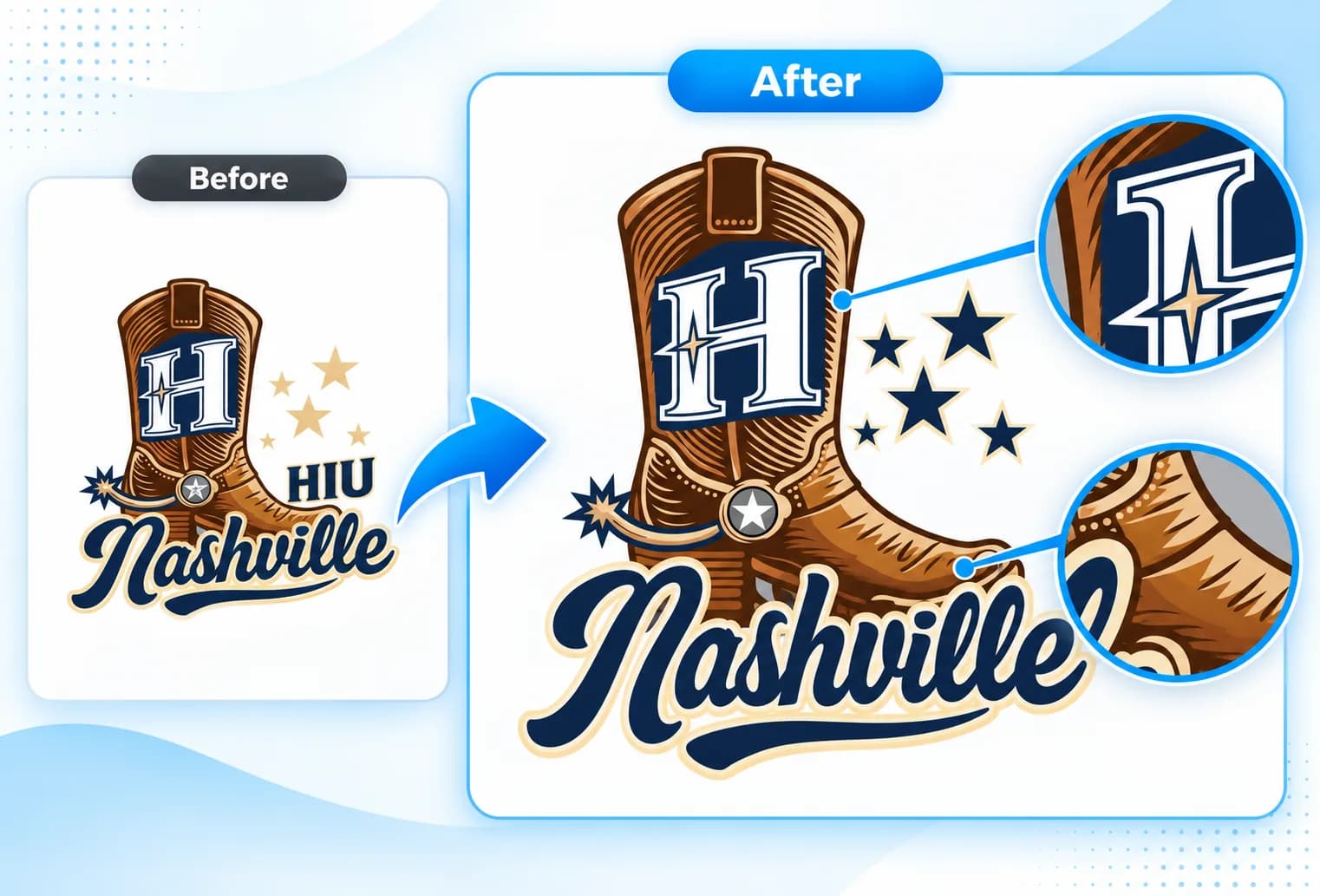
Step 8: Inspect the Final Artwork
Open the exported files in compatible software.
Zoom in on curves and lettering.
Check the design at both small and large display sizes.
Confirm that the essential artwork contains actual vector paths and that no unexpected raster elements or missing fonts have been introduced.
Practical advice: Professional vector conversion is not just changing a filename. It is the reconstruction and verification of usable graphic artwork.
Common Vector Conversion Mistakes
Poor vector conversion can create problems in printing, cutting, editing, and branding.
Here are some mistakes worth avoiding.
1. Embedding a Raster Image Instead of Vectorizing It
A JPG inserted into an Illustrator or PDF document remains a raster image unless its artwork is actually converted or reconstructed.
Always inspect the underlying objects.
2. Using Too Many Anchor Points
Automatic tracing can generate excessive points around pixelated edges.
This may create irregular curves, oversized files, and difficult editing.
Cleaner paths generally make simple logo artwork easier to maintain.
3. Tracing Blurry Lettering Exactly
Blurry source text may contain distorted shapes.
Tracing those distortions can produce inaccurate letters.
Where possible, rebuild the intended lettering rather than preserving image defects.
4. Ignoring Proportions
A logo can have smooth vector paths and still be wrong.
Incorrect letter spacing, stretched symbols, or uneven borders can damage brand consistency.
5. Leaving Unwanted Background Objects
Raster images often contain background colors, shadows, or compression artifacts.
Those elements may be accidentally converted into vector objects.
Remove unnecessary content before final export.
6. Forgetting Fonts
A vector file containing live text may display differently on another computer if the font is unavailable.
Outline text when production requires it, while keeping an editable original where useful.
7. Changing Brand Colors
Automatic tracing can create several similar colors from anti-aliased raster edges.
Review the palette and match the intended brand colors as closely as available references allow.
8. Overcomplicating the Artwork
Not every pixel needs its own vector object.
For logos and spot-color printing, intentional simplification often improves editability and production suitability.
9. Exporting Without Verification
Always inspect the exported file.
A design can look correct in the original application but produce different results after export because of missing assets, unsupported effects, transparency, or font issues.
When Should You Use Vector Instead of Raster?
The correct format depends on the final application.
| Application | Generally Preferred | Why |
|---|---|---|
| Company logos | Vector master | Scalable, editable brand shapes |
| Business cards | Vector for logos and text | Clean edges and accurate layout |
| T-shirt spot-color screen printing | Vector when suitable | Easier spot-color preparation |
| Photographic T-shirt prints | High-resolution raster may be suitable | Retains tonal and photographic details |
| Signs and banners | Vector for lettering/logos; raster for photos | Flexible production sizing |
| Embroidery artwork references | Vector or clear raster | Artwork still requires stitch digitizing |
| Website icons | SVG/vector when suitable | Crisp scalable graphics |
| Website photographs | Optimized raster | Efficient detailed imagery |
| Social media graphics | Raster exports are common | Predictable platform display |
| Product packaging | Often mixed vector and raster | Text, logos, photos, and textures |
Logos and Branding
A vector master is usually an excellent asset to preserve.
It allows a business to export logo versions for websites, print materials, uniforms, signage, and packaging.
Photography and Detailed Artwork
Raster formats are normally the more practical choice for photographs and detailed tonal imagery.
Converting a photograph into vector art should be a deliberate stylistic or production decision—not an automatic quality upgrade.
Production Artwork
Ask your printer, embroiderer, or manufacturer which files they need.
File preparation requirements vary by equipment, materials, and production methods.
How Much Does Vector Art Conversion Cost?
Vector conversion pricing depends on the complexity of the source artwork and the amount of reconstruction required.
A simple logo with bold shapes may be easier to rebuild than a detailed illustration with irregular outlines and complicated lettering.
The most important cost factors include:
- Source image quality
- Number and complexity of shapes
- Lettering reconstruction
- Color requirements
- Amount of manual tracing
- Cleanup and correction work
- Required file formats
- Special production requirements
- Expected delivery deadline
For example, converting a clean, high-contrast wordmark may require relatively straightforward path reconstruction.
Rebuilding a damaged, low-resolution emblem with detailed lettering could require more extensive manual work.
Because these projects differ, a quotation based on actual artwork is more useful than an unsupported universal price.
If you need vector art conversion, send your original image and explain how you plan to use the design.
How to Prepare Artwork for Professional Vector Conversion
Providing useful source information helps a vector artist understand your intended result.
Before submitting a project, prepare the following details.
Original Artwork
Send your best available source file, even if it is a PNG, JPG, PDF, or screenshot.
If you have several references, provide them together.
Highest-Quality Available Version
Avoid repeatedly forwarding compressed images when an original file is available.
A clearer source can make reconstruction more accurate.
Intended Production Use
Explain whether the artwork is intended for:
- Screen printing
- Apparel branding
- Business cards
- Signage
- Packaging
- Promotional products
- Embroidery artwork preparation
Different applications may need different final files.
Required Dimensions
Tell the provider your approximate intended print or display size.
Even when the final artwork is vector, this helps identify details that may not reproduce well at small production sizes.
Preferred File Formats
Ask the production company whether it requires AI, EPS, SVG, PDF, or another format.
If you need an editable source file, specify that requirement.
Brand Color References
Provide available brand-color codes or visual references.
If exact print-color matching is important, discuss that requirement with the printer.
Deadline and Special Instructions
Mention relevant deadlines, artwork variations, and technical requirements.
A detailed request helps prevent unnecessary clarification cycles.
Frequently Asked Questions
What Is the Main Difference Between Vector and Raster Images?
Vector images use mathematically defined paths and shapes, while raster images use pixels. Vector geometry can scale without pixelation, whereas raster image quality depends on its available pixel detail.
Is PNG a Vector File?
No. PNG is a raster image format. It can support transparent backgrounds, but transparency does not make the artwork vector-based.
Is JPG a Vector File?
No. JPG or JPEG is a raster format commonly used for photographs and web imagery. It does not contain ordinary editable vector paths.
Is PDF Always a Vector File?
No. A PDF can contain vector artwork, raster images, or a combination of both. Its contents must be inspected to determine whether the actual logo is vector-based.
Is SVG a Vector Format?
Yes. SVG is designed to represent scalable graphics and commonly contains vector paths and shapes. However, an SVG file can also include embedded raster images, so its contents still matter.
Can You Convert a JPG Into Vector Artwork?
Yes. A JPG logo can often be reconstructed as vector artwork using manual tracing, automatic tracing, or a combination of both.
The quality depends on the source and the conversion process.
Can You Turn a Blurry Logo Into a High-Quality Vector?
Often, yes—particularly when the original logo has recognizable shapes and lettering.
However, missing details may need to be reconstructed using reliable references. Vector conversion cannot automatically recover information that is absent from the source.
Is Vector Better Than Raster for Printing?
Vector is often preferable for logos, lettering, and clean spot-color artwork.
High-resolution raster images can be more appropriate for photographs, textures, and certain printing methods.
The best format depends on the production process.
Do Embroidery Machines Require Vector Artwork?
Not necessarily. A digitizer can use suitable raster or vector artwork as a reference.
The embroidery machine ultimately requires compatible stitch instructions, such as a DST, PES, or EXP file, rather than an ordinary vector logo.
What Format Is Best for Screen Printing?
AI, EPS, and suitable vector PDFs are often preferred for clean spot-color artwork.
For photographic or halftone printing, high-resolution raster files may also be appropriate.
Always confirm the printer's specifications.
Can Adobe Illustrator Automatically Vectorize an Image?
Yes. Adobe Illustrator includes Image Trace functionality that can convert raster artwork into vector shapes.
Automatic results should be reviewed and refined as necessary, especially for lettering, detailed logos, and low-quality source images.
Does Converting Raster to Vector Improve Quality?
It can improve scalability, path cleanliness, and editability when the artwork is properly reconstructed.
However, simply tracing a low-quality image does not guarantee an accurate result. Poor tracing can preserve or exaggerate the original image's defects.
Final Thoughts: Choosing Between Vector and Raster
Vector and raster graphics are both valuable digital image formats, but they serve different purposes.
Vector artwork is particularly useful when you need clean, scalable logos, lettering, icons, and production graphics.
Raster artwork is ideal for photographs, textures, detailed imagery, and many digital-media applications.
For business logos, keeping a clean editable vector master is often a smart long-term decision.
If you only have a low-resolution PNG or JPG, professional raster-to-vector conversion may help reconstruct the artwork for printing, branding, signage, and other uses.
The key is to choose the right format for the actual production requirement, rather than assuming one file type is always superior.
Professional Vector Art Conversion With Aspire Digitizing
Do you have a blurry logo, low-resolution image, or artwork that your printer cannot use?
Aspire Digitizing provides professional Vector Art Conversion services for businesses, apparel brands, screen printers, embroidery shops, and promotional product suppliers.
Share your existing artwork and tell us how you plan to use the design.
Our team can review your file and help determine the appropriate vector conversion requirements, whether you need clean outlines, scalable logo artwork, or suitable production file formats.
Get your artwork ready for professional printing and branding.