Embroidery Digitizing
DST vs PES vs EXP: Understanding Embroidery File Formats
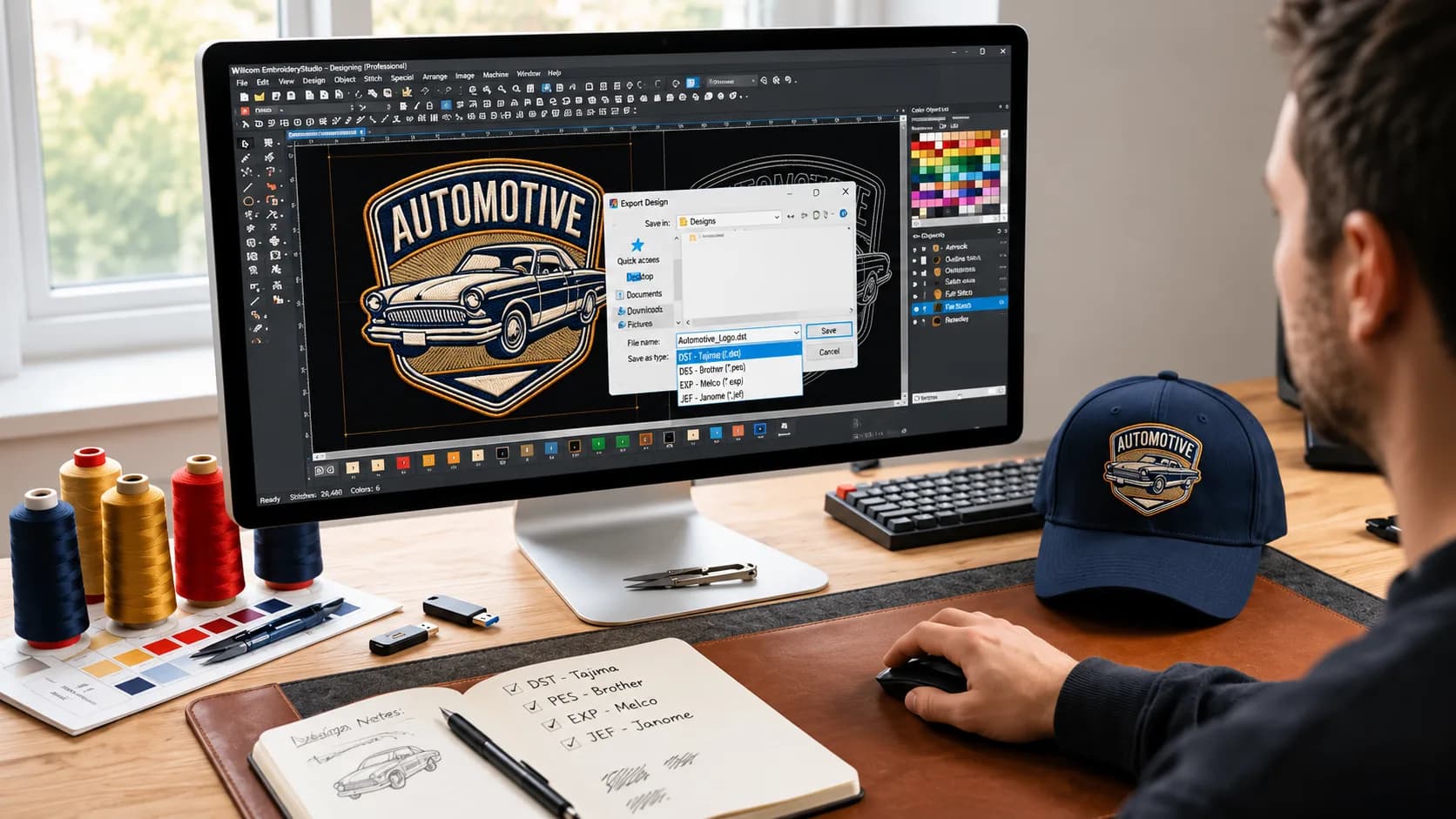
You have a logo ready for embroidery. Your digitizing provider sends you three files: logo.dst, logo.pes, and logo.exp.
They all represent the same design, but which file should you load into your embroidery machine?
If you're new to machine embroidery, choosing between DST, PES, and EXP embroidery file formats can be confusing. These formats may look similar when previewed in embroidery software, but they differ in machine compatibility, thread-color information, and how they are used in production.
The right choice depends primarily on your machine's supported formats—not which extension is considered the most professional.
In this guide, we'll explain what these embroidery files contain, how they differ, which machines use them, and how to avoid common file compatibility problems.
Whether you're operating an embroidery shop, starting an apparel brand, or preparing your first custom embroidered logo, this comparison will help you choose the correct file with confidence.
What Are Embroidery Machine File Formats?
An embroidery machine file is a digital file containing instructions that an embroidery machine can interpret to stitch a design.
Unlike a regular image file, an embroidery file typically includes information about needle movement and machine operations.
Depending on the format, it may contain:
- Stitch positions and movement instructions
- Design dimensions
- Color-change or stop commands
- Jump and trim information
- Thread-color information, where supported
- Additional machine-specific data
The embroidery machine reads these instructions and follows the stitch sequence to produce the design on fabric.
Why Can't an Embroidery Machine Use a JPG or PNG Directly?
JPG and PNG files contain visual image information, not the stitch-by-stitch instructions required by conventional embroidery machines.
For example, a PNG logo may contain a red letter, a white border, and a blue background.
An embroidery machine needs more than those colors and shapes. It needs to know how each area will be stitched, which stitch directions to follow, and when to move between design elements.
This information is created through embroidery digitizing.
If you're unfamiliar with that process, our beginner's guide, What Is Embroidery Digitizing?, explains how artwork becomes a machine-ready embroidery design.
Machine Files vs. Editable Design Files
There are two important categories of embroidery files:
Machine stitch files are designed for embroidery production. Examples include DST, PES, EXP, and JEF.
Native design files are designed for editing in compatible digitizing software. Examples include Wilcom EMB files.
A machine file may retain stitch positions but not all the original design objects, stitch settings, and editable lettering information.
Understanding this distinction is especially important if you expect to resize, modify, or reuse a design later.
DST vs PES vs EXP: Quick Comparison
The following table summarizes the most important differences between these three popular embroidery file formats.
| Feature | DST | PES | EXP |
|---|---|---|---|
| Common association | Tajima / commercial embroidery | Brother / Baby Lock | Melco / compatible BERNINA workflows |
| Typical use | Commercial production | Home and commercial machine workflows | Commercial and BERNINA-specific workflows |
| Stitch instructions | Yes | Yes | Yes |
| Thread-color information | Typically not preserved | Generally supported | Depends on EXP type |
| Editable design objects | Not equivalent to native source | Not equivalent to native source | Not equivalent to native source |
| Main advantage | Broad use in commercial workflows | Useful color and machine compatibility features | Common in Melco and BERNINA workflows |
| Main consideration | Colors may display incorrectly | Machine and format-version compatibility | Melco and BERNINA EXP requirements differ |
Quick Answer: Which File Should You Choose?
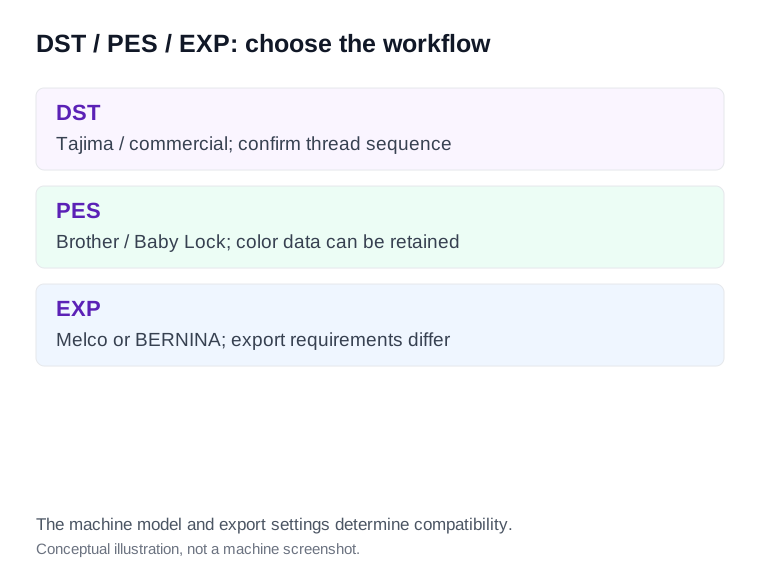
Choose DST if your machine or commercial embroidery workflow requires Tajima DST.
Choose PES if your Brother or Baby Lock machine supports PES and your design is compatible with its embroidery capabilities.
Choose EXP if your machine requires EXP, but confirm whether it needs Melco EXP or BERNINA USB EXP.
If you're unsure, check your machine manual or ask your embroidery digitizing provider.
Important: No single embroidery format works on every machine. A matching extension does not guarantee that the design's size, stitch count, file version, or transfer method will be supported.
What Is a DST Embroidery File?
A DST file is a widely recognized machine embroidery format associated with Tajima embroidery systems.
Its .dst extension is commonly encountered in commercial embroidery production.
Many digitizing services provide DST files because they are widely used in professional workflows, although individual machine compatibility still needs to be confirmed.
How DST Files Work
A DST file stores stitch-related instructions that an embroidery machine or compatible software can interpret.
Rather than preserving editable lettering objects or complex design properties, DST primarily represents the finished stitch sequence.
This makes it useful as a production output file.
However, it is less suitable than a native design file for significant editing.
Which Embroidery Machines Use DST?
DST is strongly associated with Tajima embroidery equipment.
It is also supported by various other commercial machines and embroidery software programs.
Some Brother embroidery machines can read DST as well, but this does not mean every Brother model accepts it.
Before transferring a DST file, verify that the particular machine supports the format.
Does DST Store Thread Colors?
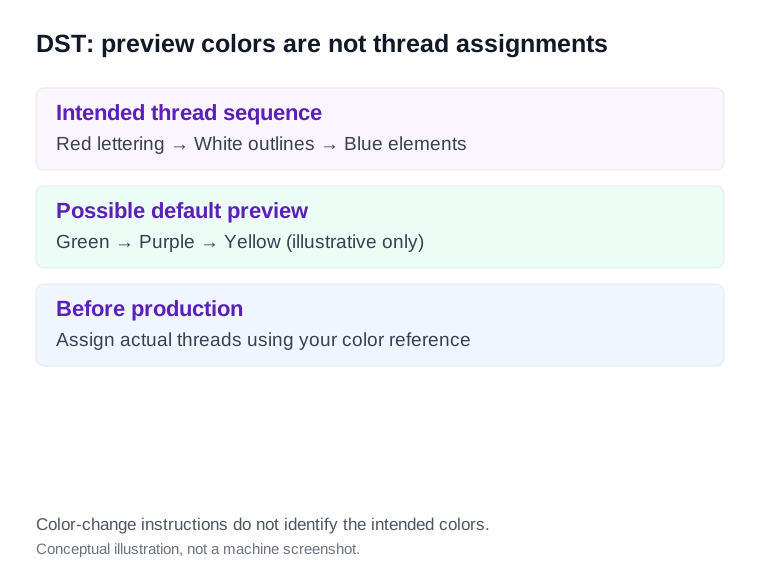
One of the most important limitations of DST is that it generally does not preserve specific thread-color information.
The design can contain instructions indicating where color changes occur, but the machine may not know which exact thread colors were intended.
For example, imagine a company logo with:
- Red lettering
- White outlines
- Blue background elements
When a DST file is loaded, compatible machine software may display completely different preview colors.
That does not necessarily mean the stitch instructions are incorrect.
It may simply mean that the machine has assigned default display colors to the color-change sequence.
Practical tip: Keep an image of the original logo or a thread-color reference sheet available when stitching DST designs. Confirm the thread sequence before production.
Advantages of DST Files
- Widely recognized in commercial embroidery workflows
- Suitable for exporting machine-ready stitch instructions
- Supported by many professional digitizing programs
- Useful for transferring production designs between compatible systems
Limitations of DST Files
- Intended thread colors are generally not stored
- Native editable design properties are not preserved
- Significant resizing or editing may require additional work
- Compatibility and machine limits still vary
DST is a practical commercial format, but it should not be treated as a complete editable design project.
What Is a PES Embroidery File?
PES is an embroidery file format commonly associated with Brother and Baby Lock machines.
It is especially familiar to users of home embroidery machines, although compatible commercial and multi-needle systems may also use it.
How PES Files Work
A PES file stores embroidery instructions in a format supported by compatible machines and software.
Depending on the file version and design, it can include information used to represent the stitch sequence and thread colors.
This can make PES convenient for users who want to see a design preview with meaningful color information.
However, the exact features supported depend on the software and embroidery machine.
Brother and Baby Lock Machine Compatibility
PES is closely associated with Brother and Baby Lock embroidery workflows.
If you own one of these machines, PES may be an appropriate choice.
However, compatibility is not determined by the brand alone.
Some machines support particular PES versions, embroidery areas, or transfer methods.
An older machine may be unable to open a PES file created in a newer format version.
Always verify compatibility with the exact machine model.
Thread Colors and Design Information
PES files can preserve thread-color information, making it easier to preview the intended appearance of the design.
This is a useful distinction from DST.
However, thread-color information should not be confused with a guarantee that the physical thread colors are correct.
Embroidery thread brands use different color catalogs, and software may map colors to different thread palettes.
It is still important to review the thread sequence and design preview before sewing.
Advantages of PES Files
- Commonly supported by Brother and Baby Lock machines
- Can preserve useful thread-color information
- Convenient for compatible home embroidery workflows
- Supported by many embroidery software programs
Limitations of PES Files
- Different PES versions may have different compatibility requirements
- Not every embroidery machine supports PES
- Editing an exported PES file may offer fewer options than editing the native source design
- Thread-color mapping may vary across software and machine settings
Best practice: When requesting a PES file, provide the exact machine model rather than asking for a generic Brother-compatible file.
What Is an EXP Embroidery File?
EXP is another important machine embroidery format.
However, understanding EXP requires one extra step because the extension is used in different embroidery workflows.
The most important distinction is between Melco EXP and BERNINA USB EXP.
What Is Melco EXP?
Melco EXP is associated with commercial embroidery systems and is supported by compatible digitizing programs.
It stores stitch-related machine instructions for embroidery production.
Like DST, commercial Melco EXP generally does not preserve intended thread-color information.
If you open a Melco EXP file in software, its preview may use default colors instead of the original logo colors.
The actual stitching sequence can still be usable when the correct threads are assigned.
What Is BERNINA USB EXP?
BERNINA USB EXP is a format configuration used by compatible BERNINA embroidery machines.
Although it shares the .exp extension, it is important not to treat it as identical to a standalone commercial Melco EXP file.
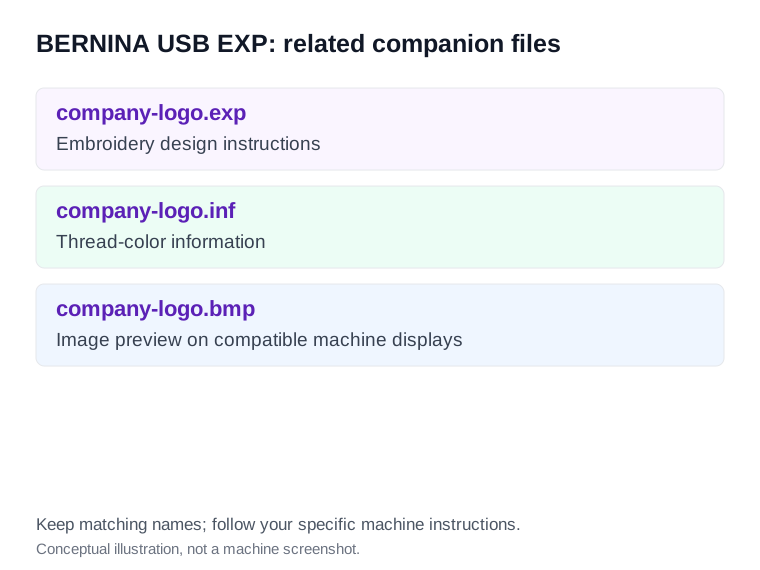
In BERNINA USB EXP workflows, additional companion files can provide information such as thread colors and image previews.
This means the export and transfer process may involve multiple files for a single embroidery design.
Why BERNINA EXP May Include EXP, INF, and BMP Files
A BERNINA USB EXP design may consist of three related files:
| File | Purpose |
|---|---|
.EXP | Contains the embroidery design instructions |
.INF | Contains thread-color information |
.BMP | Provides an image preview for compatible machine displays |
For example, a design could be supplied as:
company-logo.exp
company-logo.inf
company-logo.bmp
These files work together in the relevant BERNINA workflow.
If you transfer only the EXP file, some color or preview information may not be available.
Important: Follow the instructions for your specific BERNINA model. Not every machine or software version uses the same export and transfer requirements.
Advantages of EXP Files
- Useful for compatible Melco embroidery systems
- Supported by professional embroidery software
- BERNINA-specific export options support compatible BERNINA workflows
- Suitable for machine-ready stitch data
Limitations of EXP Files
- Melco EXP generally does not contain intended thread colors
- BERNINA USB EXP may require companion files
- An EXP extension alone does not identify all compatibility requirements
- Machine and software limitations still apply
Beginner tip: If your machine requires EXP, specify the machine manufacturer and model when ordering the design. This helps the digitizer export the appropriate version.
DST vs PES vs EXP: Which Embroidery Format Should You Choose?
The best format depends on your machine and how you plan to use the embroidery design.
For Commercial Embroidery Businesses
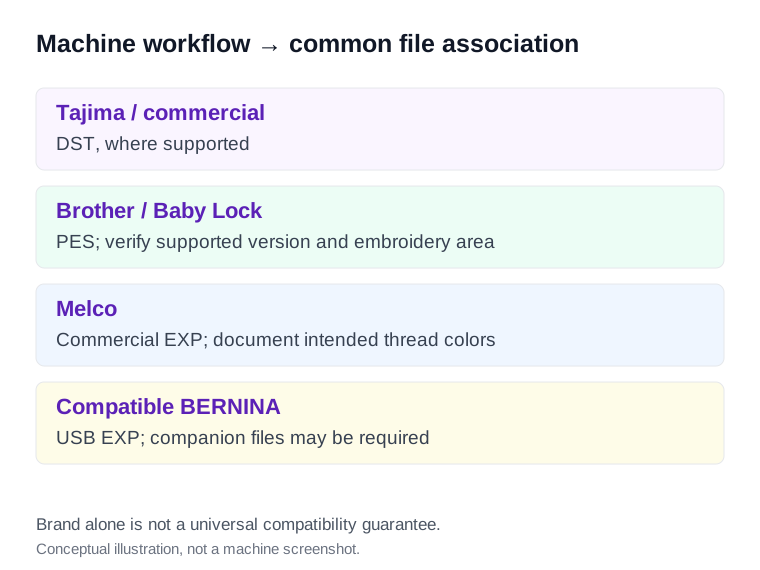
Commercial embroidery shops frequently use DST in workflows where supported by their equipment.
Its broad adoption makes it a useful file for many production environments.
However, commercial embroidery machines do not all use identical formats.
A shop using Melco equipment may need EXP, while another machine may require a different format entirely.
Choose the format supported by the actual machine rather than assuming DST is always the default.
For Brother and Baby Lock Machine Owners
PES is commonly the appropriate choice for compatible Brother and Baby Lock machines.
It can also be helpful when thread-color information is important to the machine's design preview.
Confirm the supported PES version and embroidery area before transferring the file.
For Melco Machine Owners
Melco EXP is a common option for compatible Melco workflows.
Keep the intended thread-color sequence documented, since commercial EXP generally does not preserve that information.
For BERNINA Machine Owners
Compatible BERNINA machines may use BERNINA USB EXP.
If the export includes EXP, INF, and BMP companion files, transfer them according to your machine's instructions.
Do not assume a standalone Melco EXP file provides the same functionality.
For Customers Ordering Embroidery Digitizing
You do not need to understand every technical detail of embroidery file formats to place a digitizing order.
You mainly need to know which format your embroidery machine requires.
When requesting a custom digitized file, share:
- Machine brand and model
- Embroidery design size
- Garment or fabric type
- Design placement
- Required output format
- Any special production instructions
If the logo will be embroidered on several types of machines, mention that requirement in advance.
The provider can then determine which compatible files should be exported.
What About JEF, VP3, XXX, and Other Embroidery Formats?
DST, PES, and EXP are popular, but they are not the only embroidery machine file formats.
Different manufacturers have developed formats suited to their equipment.
| Format | Common Association |
|---|---|
| JEF | Janome embroidery machines |
| VP3 | Husqvarna Viking and certain Pfaff machines |
| XXX | Certain Singer embroidery workflows |
| HUS | Husqvarna Viking and related workflows |
| PEC | Brother/Baby Lock/Deco-related embroidery workflows |
| CSD | Certain Singer-related workflows |
These associations are useful starting points, not universal compatibility guarantees.
Always confirm which formats your actual machine supports.
If you regularly work with customers who own different machines, having a reliable digitizing workflow for exporting multiple compatible formats can save time.
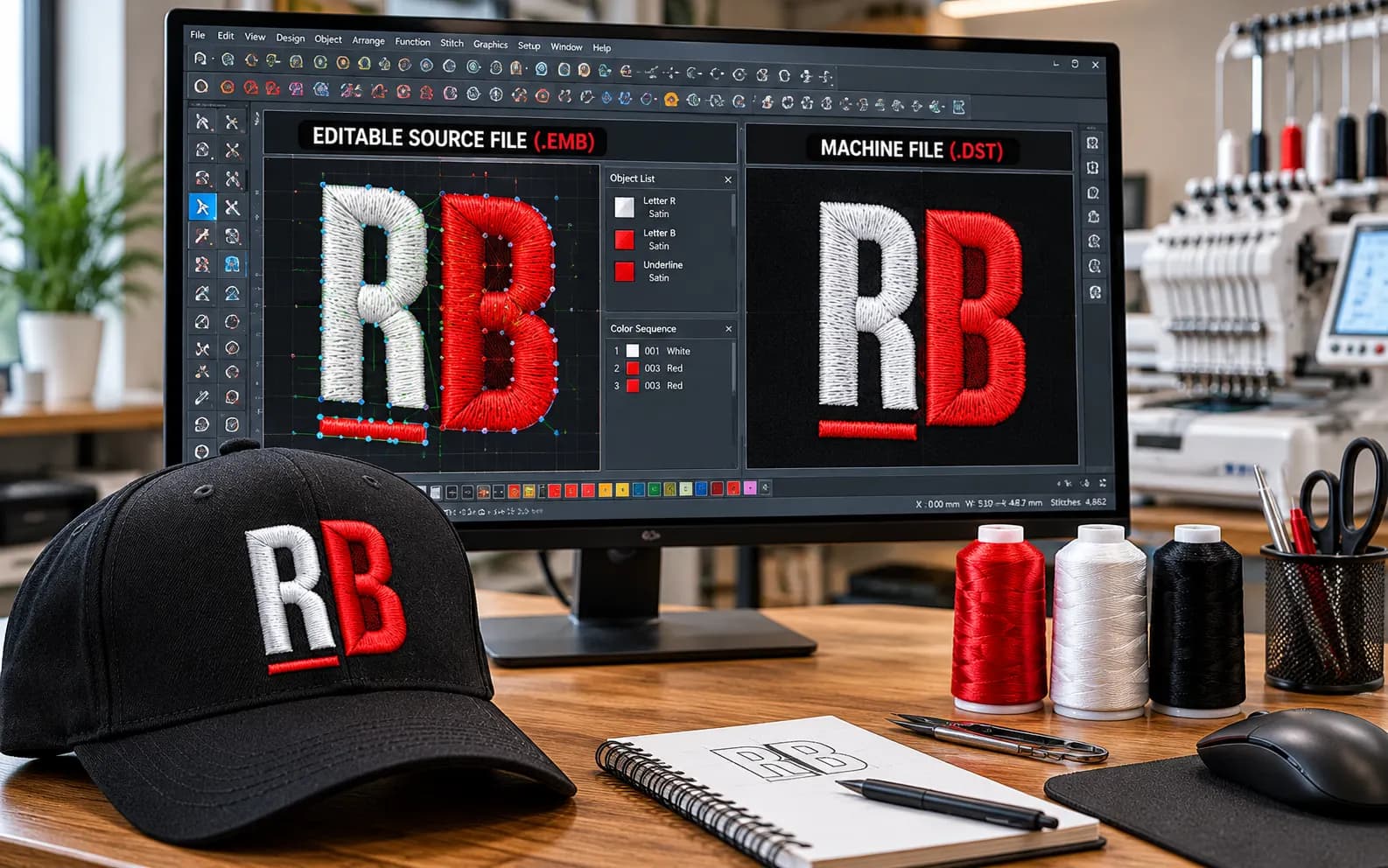
Embroidery Machine Files vs. Editable Source Files
One of the most common misunderstandings in embroidery production is the difference between an exported machine file and an editable digitizing file.
Although both may represent the same logo, they are created for different purposes.
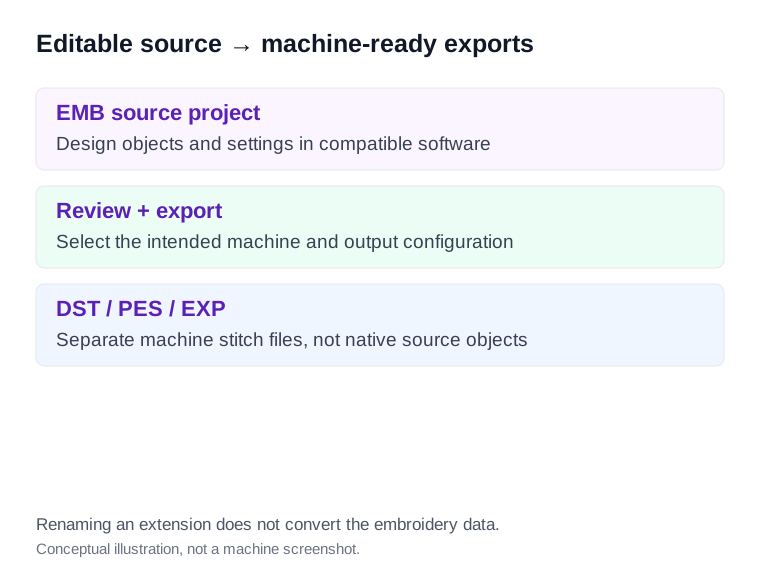
What Is an EMB File?
EMB is a native embroidery design format associated with Wilcom software.
A suitable EMB file can preserve information about design objects, stitch types, lettering, underlay, density, and other properties.
This makes it valuable when future design changes are required.
For example, imagine an embroidery shop regularly creates employee uniforms.
The company logo remains the same, but individual employee names need to change.
If the original design contains compatible editable lettering objects, editing names may be more convenient than working only from an exported stitch file.
What Is the Difference Between DST and EMB?
The main difference is editability versus machine production.
| Feature | DST | EMB |
|---|---|---|
| Primary purpose | Machine-ready stitch output | Editable embroidery design |
| Stitch instructions | Yes | Can contain generated stitches |
| Editable design objects | Generally not preserved | Supported |
| Editable lettering | Limited after export | May be retained as editable objects |
| Underlay and density settings | Not preserved as native editable properties | Can be preserved |
| Best use | Production on compatible machines | Editing and future design changes |
Why Should You Keep the Original Editable Design?
Keeping a compatible native design file can help when you need to:
- Change lettering
- Adjust stitch properties
- Produce another embroidery size
- Modify outlines
- Adapt an existing logo for a different placement
- Re-export a design for another machine
An exported machine file can sometimes be edited, but it generally provides less flexibility than the original digitizing project.
Recommendation: If future revisions are important, ask your digitizing provider whether an editable native file is available and which software is required to open it.
Can You Convert DST to PES or EXP?
Yes. Compatible embroidery software can often convert an existing machine embroidery file into another supported machine format.
For example, a digitizing program may be able to read a DST file and export a PES version.
However, conversion is not always as simple as choosing a different extension.
How Embroidery File Conversion Works
A typical conversion process involves:
- Opening the original embroidery file in compatible software.
- Reviewing the design and its dimensions.
- Checking the stitch sequence and thread-color information.
- Selecting the required output format.
- Exporting the file using the appropriate machine settings.
- Verifying that the converted design opens correctly on the intended machine.
For BERNINA workflows, it may also be necessary to include the appropriate companion files.
Can You Rename a DST File to PES?
No.
Renaming logo.dst to logo.pes changes only the filename.
It does not convert the internal embroidery data.
A machine expecting a valid PES structure may reject the renamed file.
Always use suitable embroidery software to perform an actual conversion.
Does Conversion Improve Embroidery Quality?
Not automatically.
Converting a poorly digitized DST file to PES does not correct inappropriate stitch density, sewing sequence, underlay, or pull compensation.
The converted file may retain the same stitching problems.
Similarly, a conversion cannot restore native editable design objects that were not preserved in the original machine file.
When Is Re-Digitizing Better Than Conversion?
Re-digitizing or editing from a native source may be preferable when:
- The design needs substantial resizing
- Small lettering requires changes
- The original stitching quality is poor
- A cap version is needed from a shirt design
- A design requires different stitch properties
- The source file is damaged or incomplete
Conversion changes file compatibility; re-digitizing addresses the structure of the embroidery design itself.
Common Embroidery File Problems and How to Fix Them
Even when you receive the correct file extension, problems can occur when opening or stitching an embroidery design.
Here are some common situations and what to check.
My Embroidery Machine Cannot Open the File
Start by confirming that your machine supports the extension.
Next, check whether the design exceeds the maximum embroidery area or other machine limitations.
Also verify that:
- The file was extracted from any ZIP archive
- The USB drive or transfer method is supported
- The filename and folder location follow machine requirements
- The file is not corrupted
- The format version is compatible
If the file still does not open, tell your digitizing provider the exact machine model and any error message displayed.
My DST File Shows the Wrong Thread Colors
DST generally does not contain the original thread-color definitions.
Therefore, the machine may display default colors when the file is loaded.
What to do: Compare the design's color-change sequence against the original artwork or supplied thread-color chart. Assign the appropriate threads before production.
Incorrect preview colors do not necessarily mean the stitch file is defective.
My EXP File Is Missing Color Information
First, determine whether you are using Melco EXP or BERNINA USB EXP.
For Melco EXP, missing thread-color definitions are expected in the typical commercial format.
For BERNINA USB EXP, check whether the required INF companion file is included.
Verify that the files have matching names and were transferred according to the machine's instructions.
My PES File Is Not Compatible With My Machine
A PES file may have been exported using a version or configuration that your machine does not support.
Confirm:
- Exact machine model
- Supported PES version
- Hoop size
- Design dimensions
- Transfer method
Ask your digitizing provider to export a machine-compatible version if necessary.
My Design Looks Different After Conversion
Converting between formats can change how information is interpreted or displayed.
For example, thread colors may be assigned differently, and machine-specific features may not transfer in the same way.
Review the design in compatible software and compare its stitch sequence and dimensions with the original.
A preview difference should be investigated before assuming the converted file will stitch incorrectly.
My Embroidery File Won't Open in My Editing Software
Not every embroidery application supports every file type or version.
Also, opening a stitch file is not the same as opening an editable native design.
For example, a software program may import a machine file for limited stitch editing without reconstructing the original editable lettering and design objects.
Check the software's supported import formats and versions.
If you need extensive design changes, request the original compatible source file where available.
How to Request the Correct File From an Embroidery Digitizing Service
When ordering digitizing services, clear communication helps reduce file compatibility problems and unnecessary revisions.
Use this checklist before placing an order.
1. Machine Manufacturer and Model
Tell your provider which embroidery machine you use.
For example, identifying a machine as Brother is helpful, but providing the actual model is better.
2. Required Embroidery Format
Mention the required extension, such as DST, PES, EXP, JEF, or VP3.
If you're unsure, provide the machine details and ask for guidance.
3. Final Embroidery Dimensions
Specify the required width and height.
A 3.5-inch-wide left-chest logo and a large jacket-back design may need different digitizing considerations.
4. Hoop or Embroidery Area
Provide the available embroidery area if it affects the design.
A machine may support a file format but still reject a design that exceeds its embroidery limits.
5. Garment Type and Placement
Mention whether the design will be stitched onto a cap, polo shirt, jacket, patch, or another product.
Fabric and placement affect digitizing decisions independently of the file extension.
6. Thread Colors
Provide the intended logo colors or a reference image.
A thread-color chart is especially helpful for formats that do not preserve precise color definitions.
7. Editable Source File Requirements
If you expect future changes, ask whether you will need an editable native design file.
Do not assume that receiving DST, PES, or EXP also means you will receive the digitizer's editable source project.
A Simple Example
Suppose you operate a small embroidery shop and need a company logo digitized for 3.5-inch-wide polo-shirt embroidery.
A useful request would include:
Artwork: Company logo in PNG or vector format
Placement: Left chest
Required width: 3.5 inches
Machine: Manufacturer and exact model
Output format: The format required by your machine
Garment: Polo shirt
Special instructions: Original logo colors and any requested detail adjustments
This gives the digitizer the information needed to prepare an appropriate production file.
Frequently Asked Questions
Is DST or PES Better for Embroidery?
Neither format is universally better.
DST is common in commercial embroidery workflows, while PES is widely associated with Brother and Baby Lock machines.
The better choice is the format supported by your machine and production process.
Can Brother Embroidery Machines Open DST Files?
Some Brother embroidery machines support DST, but compatibility depends on the model.
Check the machine documentation before transferring a DST design.
Even on supported machines, DST colors may be displayed using default thread assignments.
Can a PES File Be Converted to DST?
Yes. Compatible embroidery software can often read a PES design and export a DST version.
However, color information and other features may not transfer in the same way. Verify the exported design before stitching.
Is EXP the Same as DST?
No.
EXP and DST are separate machine embroidery formats.
Both can contain stitch-related instructions, but their structures and machine workflows differ.
Also, Melco EXP and BERNINA USB EXP should not be treated as interchangeable in every situation.
Does a DST File Contain Thread Colors?
DST generally does not preserve specific thread-color definitions.
It can represent stops or changes in the sewing sequence, but the intended colors may need to be assigned separately.
What Embroidery File Format Does BERNINA Use?
Many compatible BERNINA embroidery machines use BERNINA USB EXP.
Some workflows require EXP, INF, and BMP companion files.
Check your specific machine's documentation because supported formats and transfer methods can differ.
Can I Convert a JPG or PNG Into DST?
Yes, but the image must be translated into machine embroidery instructions through digitizing or appropriate embroidery software.
Simply changing a JPG or PNG extension to DST does not create a valid embroidery file.
Is an EMB File Editable?
An EMB file can preserve editable embroidery design objects when created and opened with compatible Wilcom-related software.
Editability depends on how the design was created and which software and file version are being used.
Can the Same Logo Be Supplied in Multiple Embroidery Formats?
Yes. A digitizing provider can often export the same prepared design into several supported machine formats.
However, exporting multiple formats does not guarantee compatibility with every embroidery machine or eliminate the need for placement-specific adjustments.
Why Won't My Embroidery Machine Recognize a Design File?
Common causes include unsupported formats, incompatible file versions, oversized designs, incorrect transfer methods, or corrupted files.
Check your machine's supported formats and design limits, then ask your digitizing provider for a compatible export if necessary.
Final Thoughts: Choosing the Right Embroidery File Format
Understanding DST, PES, and EXP is an important part of preparing artwork for machine embroidery.
The differences are not about which file extension is more professional. They are about machine compatibility, the information preserved in each format, and how the design will be used during production.
Remember these essential points:
- DST is widely used in commercial embroidery workflows, but generally does not preserve specific thread colors.
- PES is commonly used with compatible Brother and Baby Lock machines and can retain useful color information.
- EXP is associated with Melco and BERNINA workflows, but the correct EXP configuration matters.
- EMB is a native editable design format, not simply another interchangeable machine stitch file.
For the most reliable results, always confirm the required format with your machine manufacturer or digitizing provider.
And remember: choosing the correct file format is only one part of successful embroidery. The stitch quality also depends on proper digitizing, fabric preparation, machine setup, and production testing.
Get the Right Embroidery File With Aspire Digitizing
Not sure whether your embroidery machine needs DST, PES, EXP, or another file format?
Aspire Digitizing provides custom embroidery digitizing services for embroidery shops, apparel businesses, promotional product companies, and clothing brands.
Share your logo, embroidery size, garment placement, machine model, and required file format so our team can review your project.
Whether you need a left-chest logo, a cap design, or a larger embroidery project, clear digitizing requirements help prepare your artwork for the intended production workflow.
Request an Embroidery Digitizing Quote
Get your artwork ready for professional machine embroidery.